The Members module is the heart of your church in Sanctumel: every believer has a single record that then feeds giving, events, birthdays and communication. This guide shows you how to create a record, step by step.
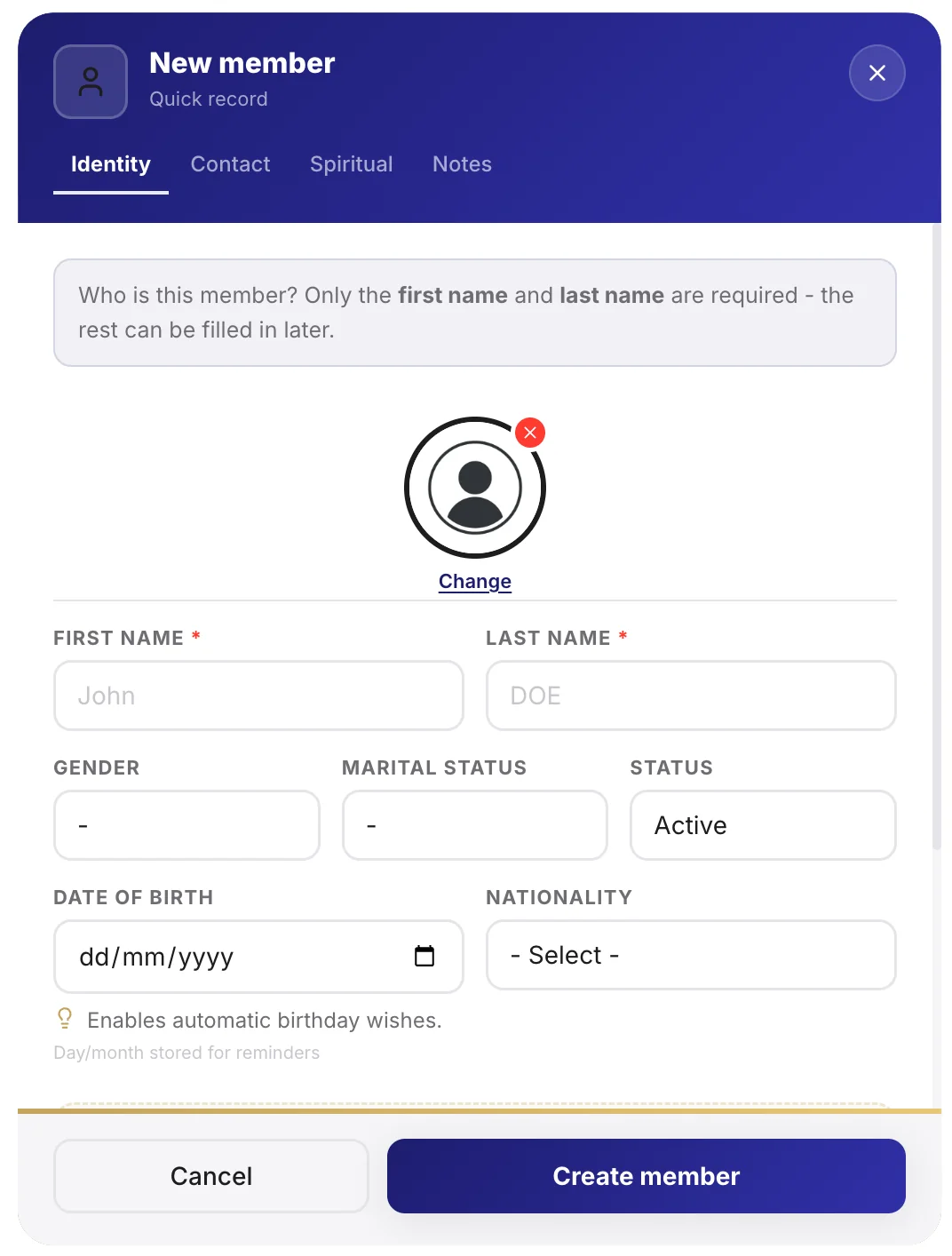
Note: you need the Administrator or Members manager role to add a member. A treasurer or a plain user won't see the button.
Open the form
- In the left menu, open Members.
- In the top right, click Add a member.
- The form opens in a side panel, without leaving the list.
Fill in the details
Only the first and last name are required; everything else can be completed later.
| Field | Required | What it's for |
|---|---|---|
| First name, Last name | Yes | The record's identity, shown everywhere |
| Date of birth | No | Feeds the birthday calendar |
| Phone | No | One-click WhatsApp and call |
| No | Messages, donation receipts, invitations | |
| Role | No | Role in the church (deacon, chorister…) |
Tip: fill in the date of birth right away. It's what makes the member appear in the birthday calendar and triggers the greeting messages.
Add the photo
The pastor knows it: a community recognises itself by its faces. To add a photo:
- Click the avatar circle at the top of the form.
- Choose an image from your device.
- Crop it (drag to reposition, scroll to zoom), then confirm.
The photo then appears in the list, the detailed record and the birthday calendar.
Save
Click Save. The record is created immediately and the member appears at the top of the list.
Warning: before creating a new record, check that it doesn't already exist. Sanctumel detects likely duplicates, but a very different entry (nickname, typo) can slip through.