If you arrive on Sanctumel with an existing list (Excel, Google Sheets, an export from an old tool), there's no need to re-enter each person by hand. Import creates all the records at once.
Note: import needs the same rights as adding a member: Administrator or Members manager role.
Prepare your file
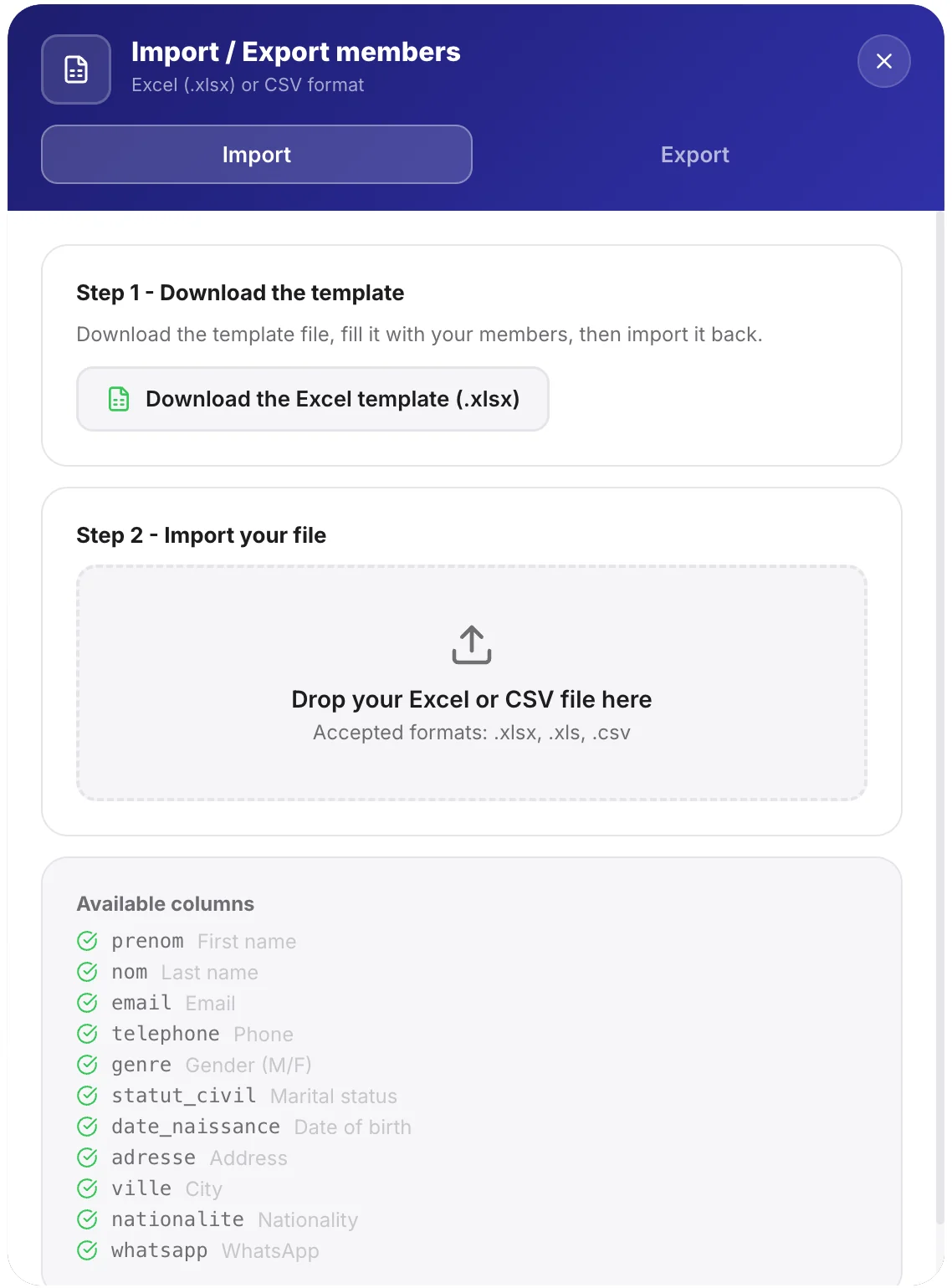
Your file should have one row per person and one column per piece of information. The recognised columns are, at minimum, the first and last name; the others (phone, email, date of birth, role) are optional.
- Open Members, then Import / Export.
- Download the file template provided: it already has the right columns.
- Paste your data into this template, one person per row.
Tip: always start from the downloaded template. It avoids column mistakes and shows you the expected format for dates.
Run the import
- Go back to Import / Export and choose your file.
- Sanctumel shows a preview: check that the columns match correctly.
- Confirm: the records are created and appear in the list.
Warning: before importing, check for duplicates. If some members already exist, a double entry can create two records for the same person. When in doubt, import a small batch first.
Export your members
The reverse is just as simple: from the same screen, you can export your whole list to an Excel file, for example for a backup or a mail merge.